Dashboard Settings
For ordinary setup, use the packaged Skulk app and its dashboard. Choose Open Dashboard from the desktop app, then Settings. Expand the section you need, change its controls, and select Save changes. Skulk saves and synchronizes runtime configuration for you; you do not need to edit a configuration file.
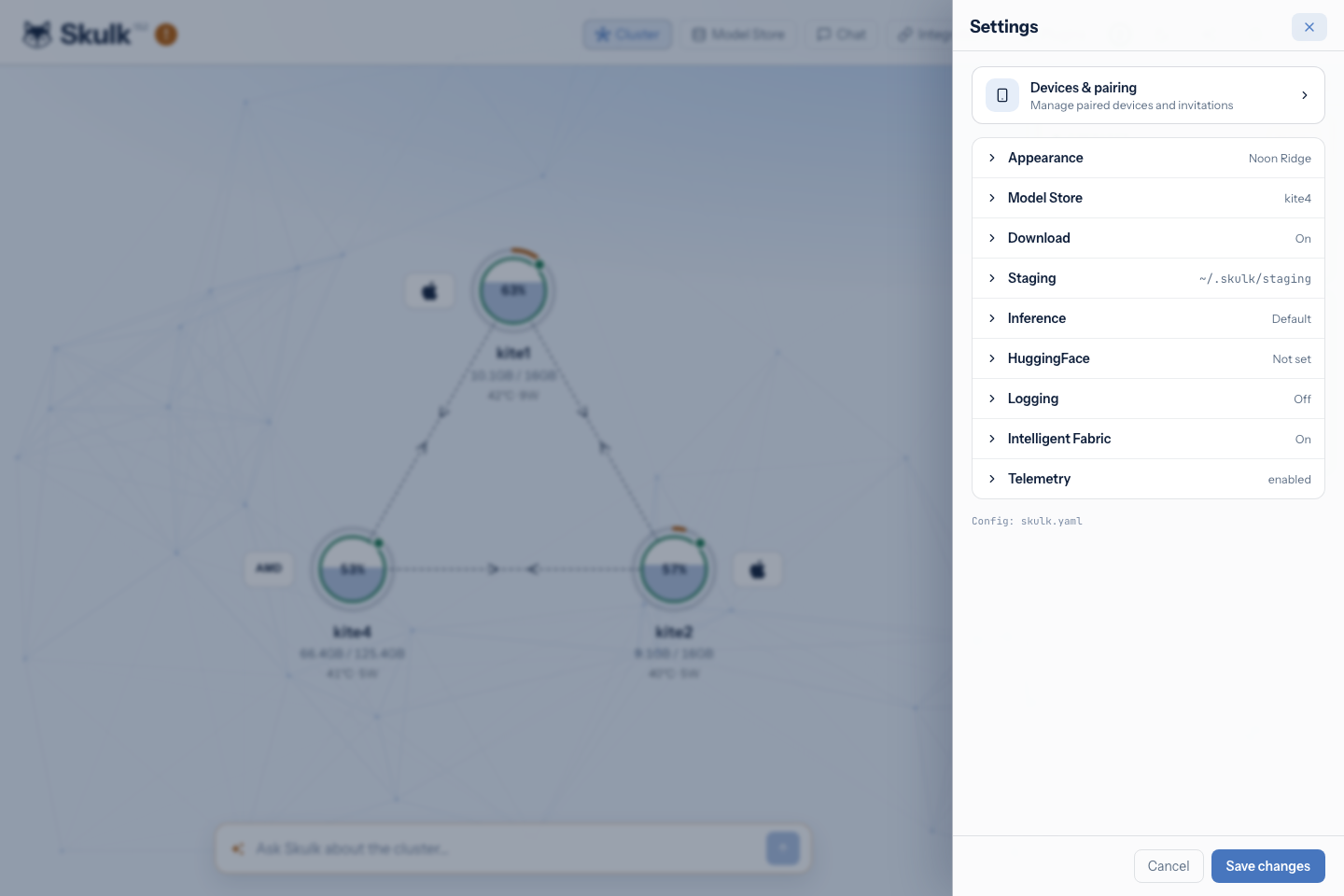
Save, cancel, and scope
The settings sections hold a draft until Save changes succeeds. Cancel or closing the drawer discards those unsaved changes. A successful save closes the drawer and shows confirmation; if saving fails, correct the reported problem and save again. A configured model store needs both a store host and a store path.
Runtime settings synchronize across the cluster. Theme selection belongs to the current dashboard. Node-specific desktop controls, such as its cluster namespace, are configured in the desktop app on each machine.
Devices & pairing is a separate management view inside Settings. Its invitation and device actions take effect through their own controls; they are not staged for Save changes, and closing Settings does not undo them. The same distinction applies to actions on the separate Plugins page.
Appearance
Choose Night or Noon Ridge under Color theme, then save. The setting changes the dashboard's appearance, not model behavior or other devices' native app theme.
Model Store
Enable a canonical store when you want one machine to hold shared downloaded models. Enter:
- Store host: the machine's hostname or node ID.
- HTTP host: an optional reachable transfer address; otherwise the store host is used.
- Port: the store service's port.
- Store path: the directory on the store host containing the canonical models.
Choose a location with enough disk space and connectivity to the workers. These controls configure the store; they do not themselves download or launch a model. See Model store for the complete setup and retention behavior.
Download
Allow HuggingFace fallback permits nodes to download directly when the model is missing from the store. Leave it enabled while getting started. If you disable it, preload every required artifact and companion into the store before expecting a placement to load without external access.
Staging
Staging copies artifacts to a worker's local disk before loading them. Enable it and choose a Cache path suitable for the participating workers. Loading directly from canonical storage is a separate store-host setup described in the model store guide.
Cleanup on deactivate keeps recent idle copies warm within the configured retention budget and removes older eligible copies when instances stop and at startup. Active artifacts are retained. Turning it off disables lifecycle cleanup; it does not disable the pre-download disk-capacity guard. The Settings panel exposes the cleanup toggle, not a numeric retention-budget control. Use the model-store management controls to reclaim eligible staged copies deliberately.
Inference
Choose KV Cache Backend to control supported MLX cache behavior: Default, OptiQ, TurboQuant Adaptive, TurboQuant, or MLX Quantized. The change applies on the next model launch, not to an already running model. Unsupported model architectures fall back to Default.
Start with Default unless you have a reason to trade memory use against cache behavior. KV cache backends explains the choices. MLX Quantized also needs its advanced cache-bit configuration. An administrator's launch-time override can disable the selector; resolve that override before expecting dashboard changes to win.
Default served context (tokens) sets the context window that llama-server,
in-process llama.cpp, and vLLM placements receive when the placement does not
choose one (inference.served_context_tokens, 32,768 by default, from 256 to
1,048,576). Those engines reserve the whole window in memory when a model loads,
whether or not requests use it. A placement can ask for a larger window under
Advanced in the placement dialog, up to what its nodes hold. The change
applies to the next placement; running models keep the window they loaded
with. MLX grows its cache per request and is not affected.
HuggingFace
Expand HuggingFace, enter API Token, and choose Save changes. A token with access to a gated/private repository is required to download it; accept the model's terms using the same Hugging Face account first.
The token is never returned as readable text by the configuration API. Settings shows whether one is configured. Entering a new token replaces a dashboard-managed value and propagates it without a restart to every node, including the model store host and nodes that join later; an empty field retains the existing value. A token explicitly supplied by an administrator when a node starts takes precedence on that node. See installation for the first-use steps.
Logging
Enable Logging and supply your configured Ingest URL when you use centralized log collection. Save to synchronize the setting across nodes. Merely turning on the switch does not install or provision the logging service.
Use Centralized logging for collector setup, log routing, and advanced service-managed overrides. Ordinary local runtime logs remain available from Reveal Runtime Log in the macOS app or Open Runtime Log in the Linux app.
Intelligent Fabric
Enable Intelligent Fabric and save to prepare Skulk's resident intelligence. Its first start downloads the required model and prepares the system placement; wait until it is ready before starting a fabric conversation. Turning it off removes that system placement.
This setting enables the Skulk conversation; it does not approve proposed operations or purchases. Plugin proposal configuration and explicit approval remain separate. See Talk to Skulk and Capabilities and plugins.
Telemetry
Performance telemetry and Crash diagnostics are independent consent switches. Enabling one does not enable the other. Performance samples describe model/hardware and execution metrics rather than prompts or generated content; crash diagnostics use their separate scrubbed-report path.
The installation ID is shown with Rotate id and Clear id controls.
Rotating or clearing disowns previously sent samples; it does not delete those
samples. Preserve any identifier you need for a deletion request. If consent
remains enabled, a cleared ID regenerates on save. Advanced users can inspect
GET /v1/telemetry/preview before enabling collection.
Devices & pairing
Open Devices & pairing to create invitations, inspect paired devices, and revoke access. Invitation administration requires the configured gateway through localhost or an authorized direct Tailscale connection.
Choose the invitation's duration and device limit, then Generate pairing code. On the phone, choose Scan pairing code, allow camera access, and scan the QR. Review the cluster identity before confirming. Follow Remote access and pairing for the full flow and the distinction between revoking an invitation and revoking a device.
Desktop and advanced settings
The desktop app controls whether this machine's runtime is started or stopped. For a custom cluster namespace, use Cluster Settings… in the macOS menu or Cluster namespace → Save Namespace in the Linux app. Use the same value on every member; changing an active node's namespace restarts its runtime. Leave the field empty for default automatic discovery.
Headless administration, development, backend installation, and options without a dashboard control can require service configuration or a configuration file. Those procedures belong in Source builds and runtime paths and the relevant hardware or engine guide. They are not prerequisites for ordinary packaged-app configuration.